
When representing a company in an employment immigration case, it is frequently helpful to give access to the client portal to a Company Representative.
Step-by-Step Guide
- 1. Creating a Company Contact
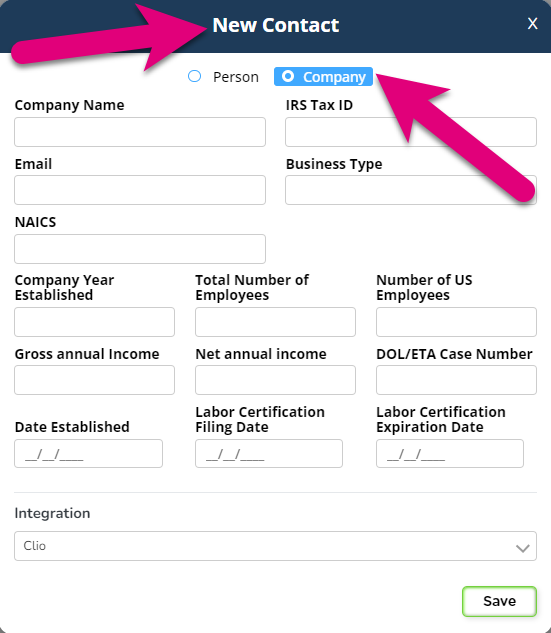
- Go to Contacts: Navigate to the “Contacts” section.
- Create New Contact: Click on “New Contact.”
- Select Company: Choose “Company” at the top of the form.
- Input Company Information: Fill in all the relevant information for the company.
- Save Company Contact: Click “Save” to create the company’s contact page.
- 2. Linking Individuals to the Company
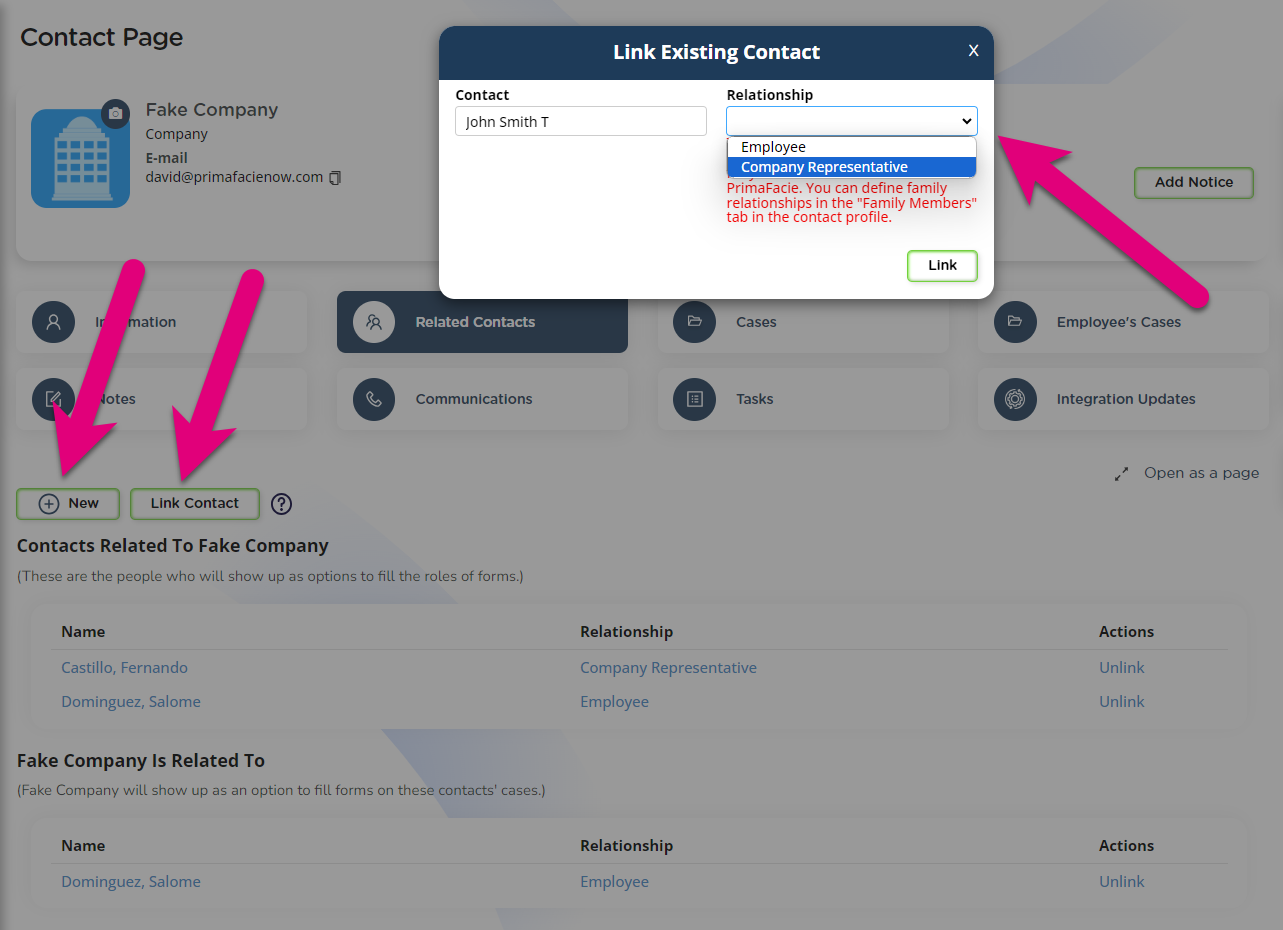
- Related Contacts: On the company’s contact page, go to the “Related Contacts” section.
- Add New Contacts:
- Create New Contacts: You can create new contacts for the company representative and employees directly from this section. They will be automatically linked to the company.
- Link Existing Contacts: If the contacts already exist, you can link them by typing their names and selecting them from the list.
- Set Relationship Type: Choose the relationship type (e.g., Employee, Company Representative).
- 3. Creating an Employment Case
- Employee Contact Page: Open the contact page for the employee for whom the company will petition.
- Create New Case: Click “Create New Case.”
- Select Case Type: For example, choose “H-1B Visa.”
- Fill in Case Details: Complete the necessary details and create the case.
- 4. Using the Client Portal
- Register Emails: Ensure that you register an email for both the company and the employee.
- Separate Access: This allows the company and the employee to have separate access to their information and cases through the Client Portal.
- Share Information: Use the Client Portal to share case details, checklists, and other important information securely and efficiently.
- 5. Recap of Steps
- Step 1: Go to “Contacts” and create a new company contact.
- Step 2: Go to “Related Contacts” and either create new contacts or link existing ones as the company representative and employees.
- Step 3: Open the employee’s contact page and create a new employment case.
- Step 4: Register separate emails for the company and employee to use the Client Portal.
Creating an employment case when there is a company representative in Prima.Law is simple and efficient. By following these steps, you can ensure that all necessary contacts are linked and that the case is set up correctly. For more detailed tutorials, check out other videos in the Prima.Law support series.
IMPORTANT: When working on the forms, remember:
You will need to also go to the Immigrant’s contact page and link both the Company Representative and the Company to the immigrant so that they company can be used to fill roles on the forms.
 David
David